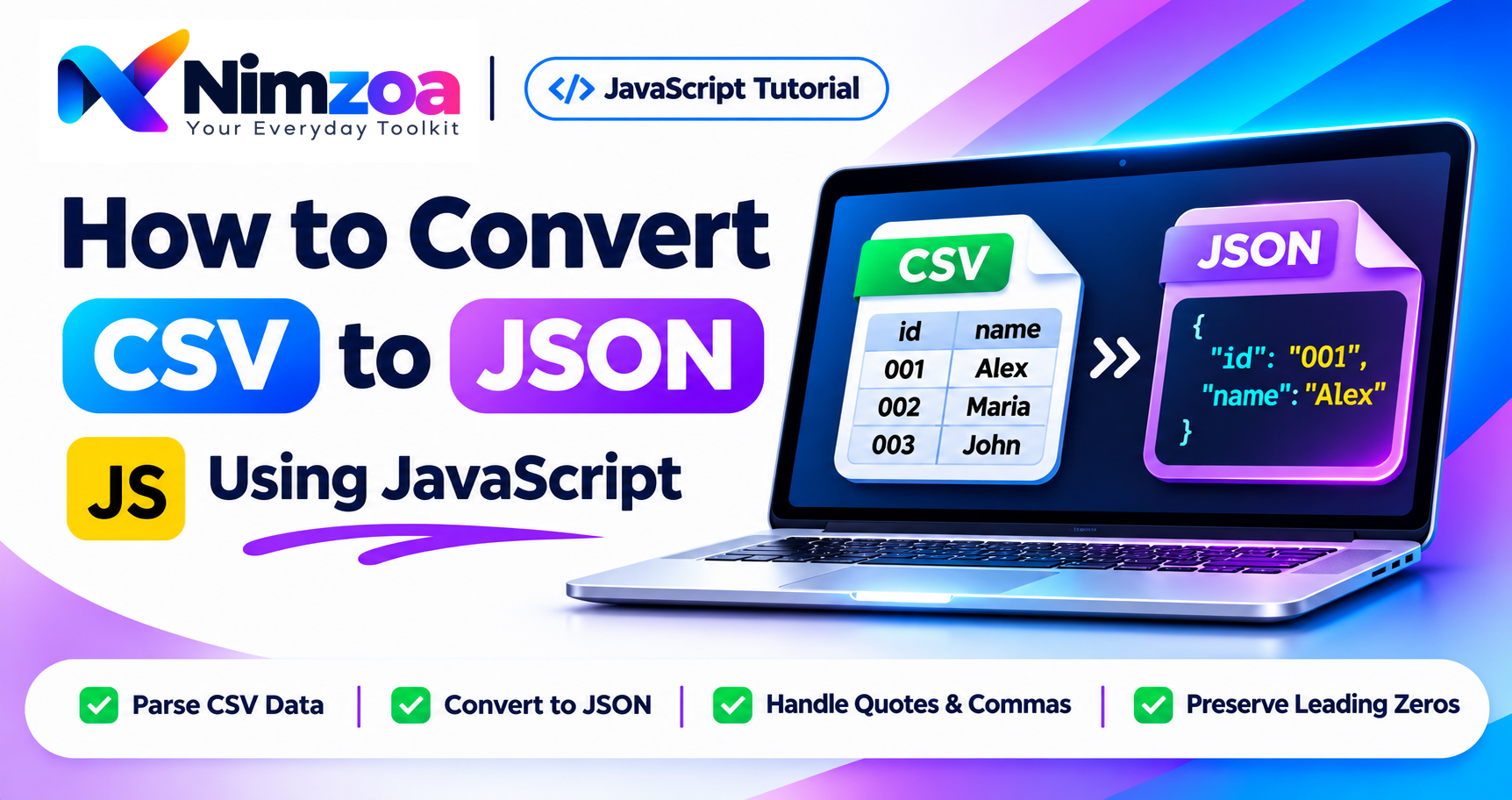
CSV and JSON are two commonly used data formats. CSV is convenient for spreadsheets and tabular exports, while JSON is widely used in APIs and JavaScript applications.
In this tutorial, we'll convert CSV into JSON using native JavaScript, handle quoted fields and preserve important values such as leading-zero identifiers.
1. Understanding CSV and JSON
Consider the following CSV data:
id,name,city
001,Alex,London
002,Sarah,Dubai
The equivalent JSON array of objects is:
[
  {
    "id": "001",
    "name": "Alex",
    "city": "London"
  },
  {
    "id": "002",
    "name": "Sarah",
    "city": "Dubai"
  }
]
The first CSV row provides the property names. Each subsequent row becomes a JSON object.
2. Why Splitting CSV by Commas Can Fail
A simple approach might look like this:
const fields = line.split(",");
However, this approach fails when individual fields contain commas.
For example:
id,name,city
001,"Alex Smith","Dubai, UAE"
The comma inside the quoted city belongs to the field itself. A proper CSV parser must recognize quoted values, escaped quotation marks and line breaks inside fields.
3. Build a CSV Parser in JavaScript
The following parser supports comma-separated fields, quoted commas, escaped quotes and multiline values. It rejects malformed quotation placement.
function parseCSV(input) {
  const rows = [];
  let row = [];
  let field = "";
  let state = "start";

  const text = input.replace(/^\uFEFF/, "");

  function finishField() {
    row.push(field);
    field = "";
    state = "start";
  }

  function finishRow() {
    finishField();
    rows.push(row);
    row = [];
  }

  for (let i = 0; i < text.length; i++) {
    const char = text[i];

    if (state === "quoted") {
      if (char === '"') {
        if (text[i + 1] === '"') {
          field += '"';
          i++;
        } else {
          state = "closed";
        }
      } else {
        field += char;
      }
      continue;
    }

    if (char === ",") {
      finishField();
      continue;
    }

    if (char === "\n" || char === "\r") {
      if (char === "\r" && text[i + 1] === "\n") {
        i++;
      }

      finishRow();
      continue;
    }

    if (state === "closed") {
      throw new Error(
        "Unexpected character after closing quote."
      );
    }

    if (char === '"') {
      if (state !== "start") {
        throw new Error("Unexpected quotation mark.");
      }

      state = "quoted";
    } else {
      field += char;
      state = "plain";
    }
  }

  if (state === "quoted") {
    throw new Error("Unclosed quoted field.");
  }

  if (row.length || field.length || state !== "start") {
    finishRow();
  }

  return rows;
}
The parser processes characters individually and tracks whether it is currently reading a quoted field.
This allows it to distinguish delimiters from commas that belong inside field values.
4. Convert CSV Rows into JSON Objects
Now we can use the first row as property names and convert each remaining row into an object.
function csvToJSON(csv) {
  const rows = parseCSV(csv);

  if (!rows.length) {
    return [];
  }

  const [headers, ...dataRows] = rows;

  if (headers.some(header => !header.trim())) {
    throw new Error("Empty column header.");
  }

  if (new Set(headers).size !== headers.length) {
    throw new Error("Duplicate column headers.");
  }

  return dataRows.map((row, index) => {
    if (row.length !== headers.length) {
      throw new Error(
        `Incorrect column count in data row ${index + 1}.`
      );
    }

    return Object.fromEntries(
      headers.map((header, column) => [
        header,
        row[column]
      ])
    );
  });
}
This function rejects duplicate headers and inconsistent column counts rather than silently discarding data.
5. Test the Conversion
const csv = `id,name,city
001,"Alex Smith","Dubai, UAE"
002,Sarah,London`;

const result = csvToJSON(csv);

console.log(JSON.stringify(result, null, 2));
Expected output:
[
  {
    "id": "001",
    "name": "Alex Smith",
    "city": "Dubai, UAE"
  },
  {
    "id": "002",
    "name": "Sarah",
    "city": "London"
  }
]
The quoted comma remains part of the city, and the leading zeros in the ID values are preserved.
6. Handle Escaped Quotes and Multiline Fields
CSV files can also contain escaped double quotes and multiline text.
const csv = `id,note
001,"She said ""Hello"""
002,"First line
Second line"`;

console.log(
  JSON.stringify(csvToJSON(csv), null, 2)
);
Expected output:
[
  {
    "id": "001",
    "note": "She said \"Hello\""
  },
  {
    "id": "002",
    "note": "First line\nSecond line"
  }
]
The parser correctly interprets doubled quotation marks and preserves the line break.
7. Convert a Local CSV File in the Browser
You can read a local CSV file using the browser's File API.
Add these elements to an HTML page:
<input type="file" id="csvFile" accept=".csv,text/csv">
<pre id="output"></pre>
Include both JavaScript functions from the previous sections, followed by this event listener:
const fileInput = document.getElementById("csvFile");
const output = document.getElementById("output");

fileInput.addEventListener("change", async () => {
  const file = fileInput.files[0];

  if (!file) {
    output.textContent = "";
    return;
  }

  try {
    if (file.size > 2 * 1024 * 1024) {
      throw new Error("File exceeds the 2 MiB limit.");
    }

    const csv = await file.text();
    const json = csvToJSON(csv);

    output.textContent = JSON.stringify(json, null, 2);
  } catch (error) {
    output.textContent = error.message;
  }
});
This example reads the selected file locally and displays the converted JSON without uploading it to a server.
8. Why CSV Values Should Remain Strings
Automatically converting numeric-looking values into numbers can introduce unexpected changes.
For example:
- Employee ID
00123could become123. - Postal codes could lose leading zeros.
- Large integer identifiers could lose precision.
Our converter preserves every field as a string. If an application requires numbers or Boolean values, those conversions should follow an explicit schema.
9. Practical Use Cases
CSV-to-JSON conversion is useful for:
- Importing spreadsheet data into web applications.
- Preparing structured API payloads.
- Processing exported product catalogs.
- Transforming tabular datasets.
- Building browser-based data utilities.
For occasional conversions without writing code, you can also use Nimzoa's free browser-based CSV to JSON converter, which offers additional delimiter and output settings.
Disclosure: I'm the maker of Nimzoa.
10. Limitations and Further Improvements
This tutorial uses a strict comma-separated parser with a required header row.
Real-world CSV files may use different delimiters, character encodings or formatting conventions.
Possible improvements include:
- Configurable delimiters.
- Optional header rows.
- Downloadable JSON files.
- Explicit data type conversion.
- Streaming parsers for large datasets.
- Web Workers to avoid blocking the browser interface.
For production applications with complex CSV requirements, consider an established CSV parsing library.
Conclusion
Converting CSV into JSON involves more than splitting text by commas. Correct handling of quoted fields, escaped quotation marks, multiline values and column consistency is essential.
Native JavaScript provides the tools necessary to build a lightweight browser-based converter while preserving the structure and important values of the original dataset.
How do you handle inconsistent CSV files in your JavaScript projects?
References
About the author
- We are the team behind Nimzoa — Your Everyday Toolkit, offering 289 free online tools. We share practical programming tutorials, browser-based solutions, web development insights and technical productivity guides. Website: https://nimzoa.com
Comments
Join the discussionNo comments yet. Be the first to comment.